> For the complete documentation index, see [llms.txt](https://lewe.gitbook.io/teamcal-neo/llms.txt). Markdown versions of documentation pages are available by appending `.md` to page URLs; this page is available as [Markdown](https://lewe.gitbook.io/teamcal-neo/administration/license.md).
# License
## Installing the license
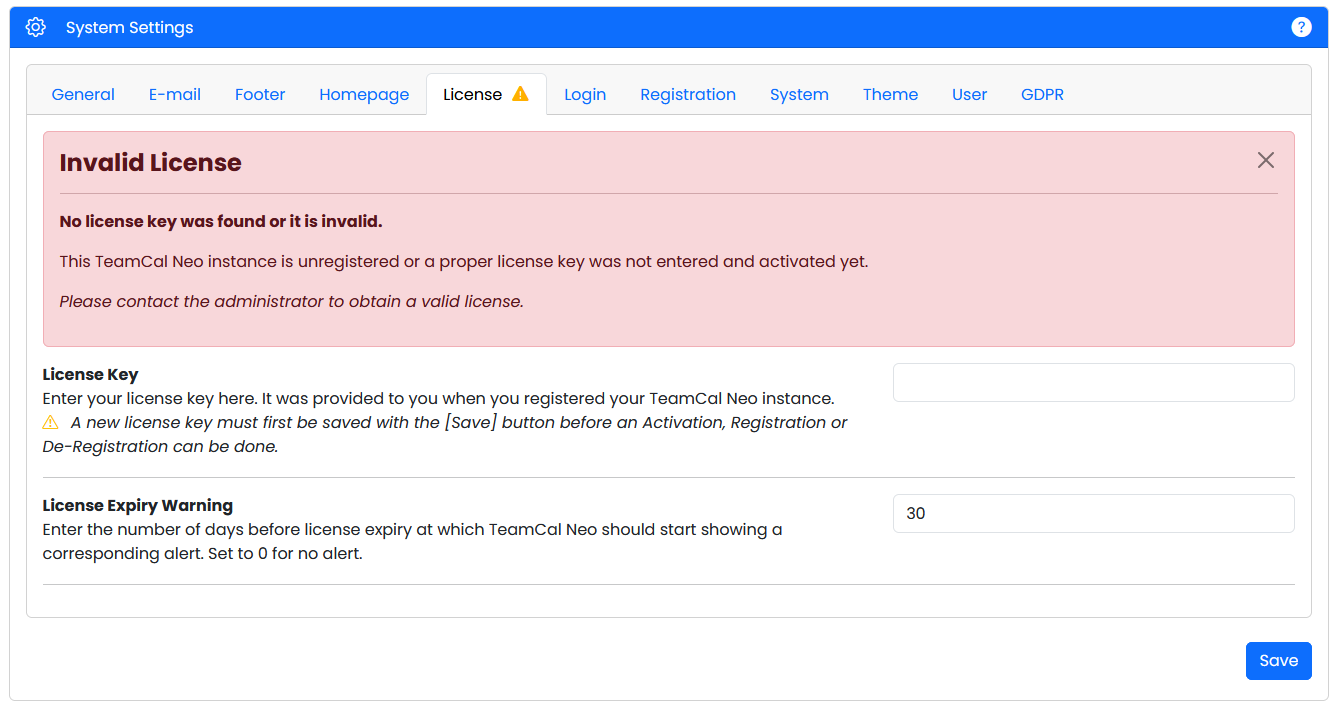
Go to System Settings and select the License tab. You will see the following screen:
Enter your license into the corresponding field and click `Save`.
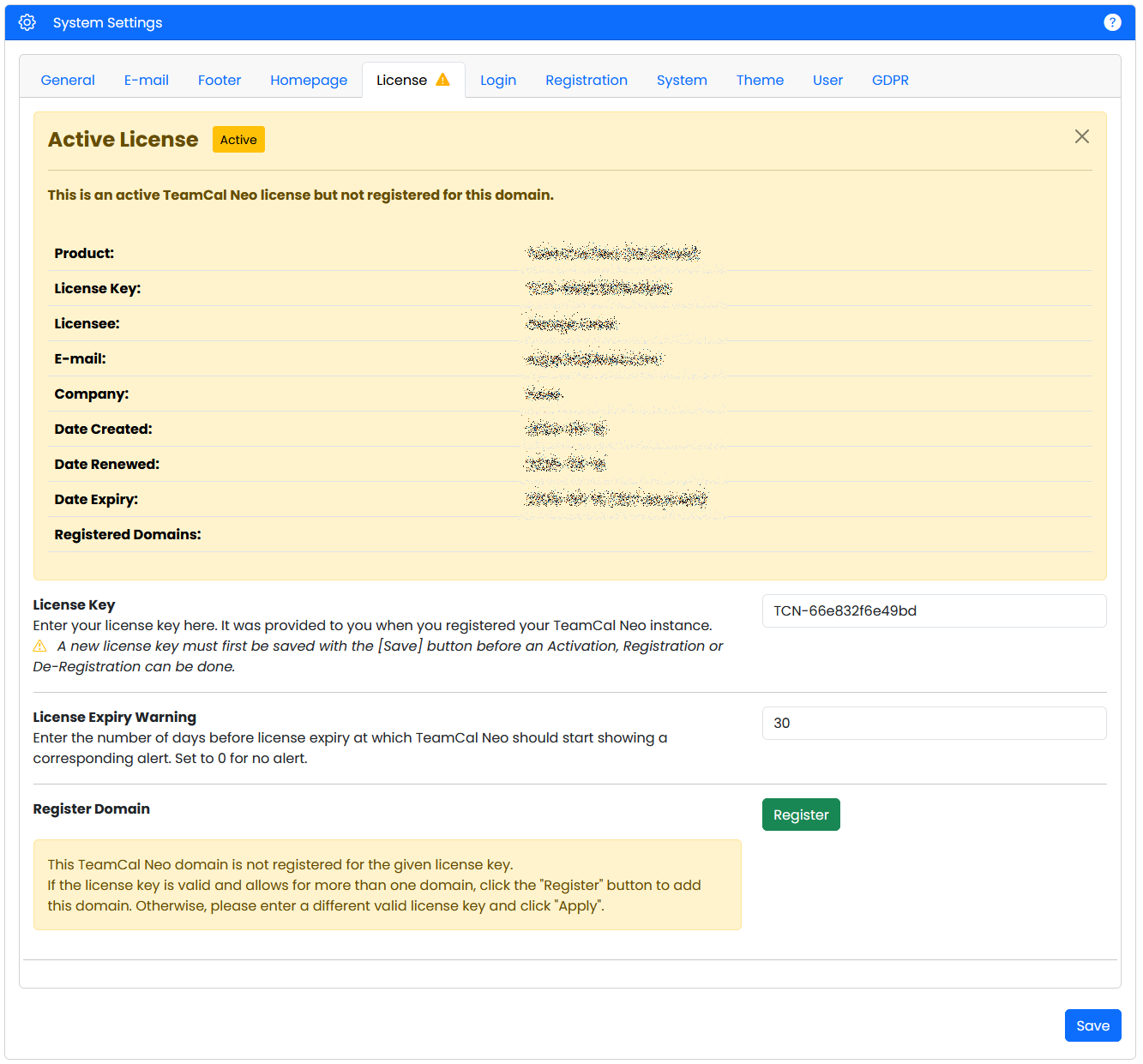
Select the License tab again. If you entered your license key correctly, you will then see:
### Register your domain for your license key
The domain on which you will be running your team calendar needs to be connected to your license key.
If your installation is the final location of your TeamCal Neo, click `Register` to register the domain you are running. That's it!
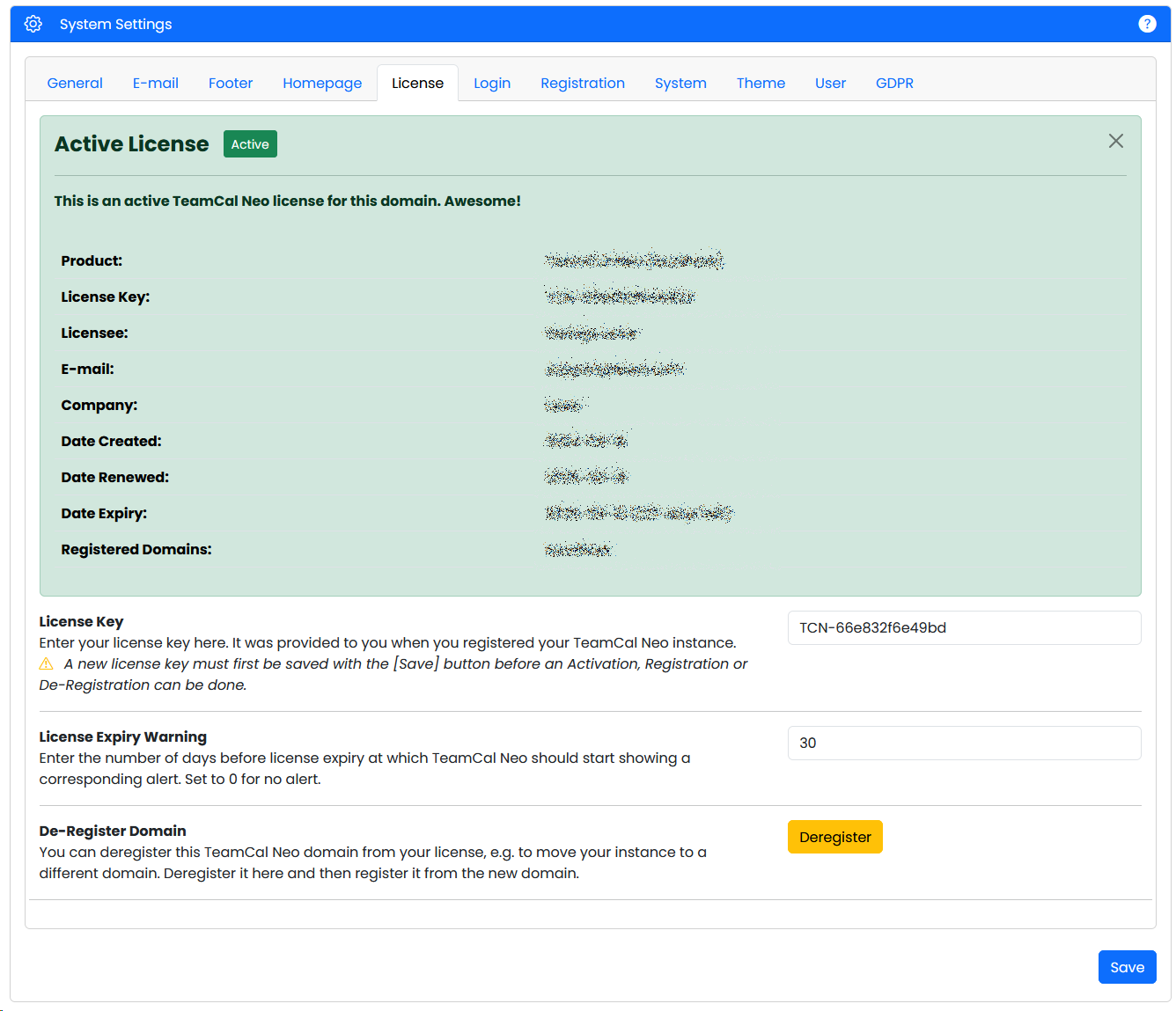
The License tab will then show:
## Deregister and Reregister
If you want to move your installation to a different domain, you first need to deregister it from your current one. Click the `Deregister` button to do so.
Then, delete the license key from the License Key field and click `Save`. This installation is now unlicensed, and you can uninstall TeamCal from your old location.
After installing TeamCal Neo on your new location/domain, follow the Installing your license instructions from above.
## Multiple Domains
A license key can support multiple domains if you ordered it so. Let's say you ordered a license key for 2 domains. In that case you can save and register the same license key in both installations.